Tag: Make Automation

  • I Stopped Posting to Instagram Manually, Here’s What I Built Instead

    I Stopped Posting to Instagram Manually, Here’s What I Built Instead

    Posting on Instagram every day? 

    It’s like doing laundry, nobody loves it, but it piles up fast.

    You open Canva. Make something pretty. Download it. Then what? 

    Open Instagram. Upload. Write a caption (ugh). Find hashtags. Post.

    Now imagine doing that for 30 days straight.

    Feels like you’re doing admin work for a brand you barely have time to grow.

    So I built a shortcut. A cheat code. An automation that takes your Canva design and fires it straight to your Instagram caption and all.

    Zero hands involved.

    Built it on Make.com, and yeah, you can use it too. I’ll drop the blueprint at the end.

    Why Posting Manually Sucks the Life Out of You

    Here’s the problem.

    Creating is fun… until it turns into a checklist.

    You spend your energy designing. Then burn more downloading, uploading, copy-pasting, caption writing, and remembering what hashtags are even trending.

    Batch-creating designs in Canva for 30 or 90 days? Smart move.

    Still posting them one by one? That’s like meal prepping for the week… and still cooking every night.

    We’ve all been there. Time to escape.

    The Automation Blueprint That Fixes It
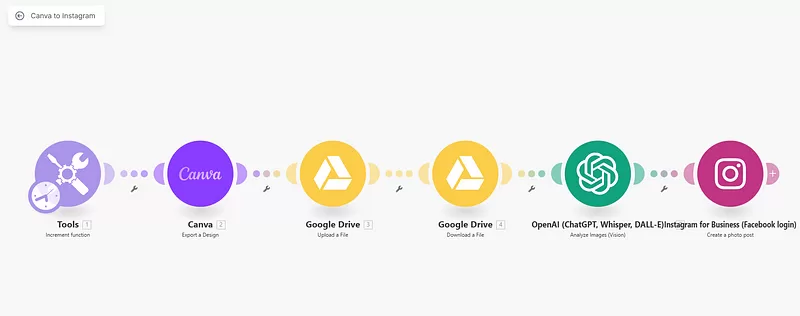
    Built on Make.com, and it does all this:

    Pulls your Canva design

    You tell it which design to grab. It gets the PNG. Like a loyal butler with WiFi.

    Uploads it to Google Drive

    This is your temp vault. It parks the file here while prepping the next step.

    Retrieves it like a pro

    Dusts it off, formats it, hands it over to the brainy part.

    Feeds it to GPT-4o

    This is where the magic happens. AI looks at your image and whips up a caption with hashtags. It’s like your own social media copywriter minus the invoice.

    Posts it to Instagram

    Image + caption goes live on your business account. No thumbs needed.

    It’s five steps. But to you, it’s one click.

    And Yes, It Can Post Automatically Every Day

    This is the real kicker.

    You bulk-create content in Canva 30, 60, 90 posts in one shot using their bulk-create tool.

    Then let this automation run once a day, twice a day, or whenever you want.

    While you’re asleep, busy, or bingeing Netflix, it’s posting like clockwork.

    Your account stays active. You stay chill.

    Why This Automation Wins

    Look, time saved is great.

    But what this really gives you is leverage.

    You work once. And it works every day.

    • No missed days
    • No “what should I post?” panic
    • No late-night caption-writing regret
    • No burnout pretending you’re a one-person media agency

    You become consistent without thinking about it.

    And that’s what separates people who grow from people who quit.

    Want It? Here’s How to Use It

    Simple steps. No code. No drama.

    1. Download the blueprint file: I’m not keeping it hostage. It’s yours. Click Here.

    2. Import into Make.com: Log in, and drag the file in. That’s it.

    3. Connect the dots: Canva, Google Drive, Instagram, OpenAI plug in your accounts. Just once.

    4. Drop your Canva Design ID: This tells the automation what to post. You can swap IDs anytime.

    5. Run it or schedule it: Once a day? Twice? Mondays only? It’s your world.

    What You Need 

    To make this work, you’ll need:

    • Make.com account (obviously)
    • Canva account with your designs (use bulk-create!)
    • Google Drive account (for the file relay)
    • Instagram Business account (not personal Meta rules)
    • OpenAI API (GPT-4o for captions)

    This isn’t a nice-to-have.

    It’s a straight-up productivity power move.

    One automation replaces five boring tasks.

    You stop wasting energy on routine and start focusing on what actually grows your brand.

    If you’ve got Canva content sitting there waiting, this automation will wake it up and send it live. One post at a time. On schedule. No burnout.

    Download the scenario. Set it up in 10 minutes. Save hours.

    More automations like this are coming, so if you’re done being your own unpaid intern, stick around.

  • Automate Your Lead Generation with Google Maps and Make.com 

    Automate Your Lead Generation with Google Maps and Make.com 

    Manual lead gen is dead.

    Not because it doesn’t work.

    But because it’s slower than a dial-up modem and about as fun as doing your taxes.

    I don’t have time for that.

    So I automated it.

    And I’m about to show you how you can do the same thing, zero code, and yes, you’ll get the actual Make.com blueprint to download and plug straight into your account.

    The Problem with Manual Lead Gen

    Here’s the deal.

    You want to find local businesses to pitch, like “marketing agencies in New York City,” so you jump into Google.

    Then the clicking begins.

    Click. Website. Scroll. Contact page. No email. Back. Repeat.

    That’s hours of your life you’ll never get back.

    Most people tap out after five leads and call it “market research”.

    Now try doing that for 100 leads every week.

    No thanks. I’d rather clean my inbox.

    Why Automate Lead Gen?

    Sure, you could hire a VA.

    Or you could sacrifice your Sunday and call it “hustle”.

    Or you can do what I did: set up an automation that does all the grunt work while I enjoy a cold brew and pretend I’m being productive.

    Make.com is the secret sauce here.

    It hits Google Maps, finds businesses, scrapes websites, grabs emails, and drops them into a sheet like a well-trained digital butler.

    And it doesn’t ask for sick leave.

    What This Automation Actually Does

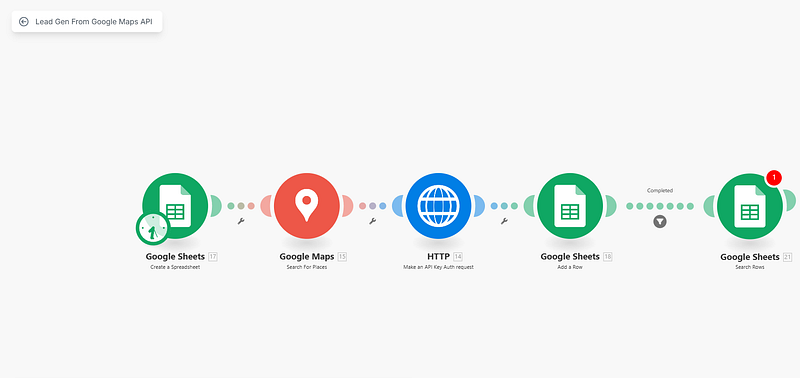
    You type in what you’re looking for, like “Dentists in California”.

    It searches Google Maps and fetches a list of businesses.

    Then it grabs each business’ website link.

    It visits each site, digs through the code for email addresses, and logs it all in your sheet.

    It’s the data version of a treasure hunt, except the map is automated.

    Who This Is For

    This setup is for people who want to get things done yesterday.

    Freelancers chasing leads. 

    Agencies scaling fast. 

    Local businesses doing recon. 

    Side-hustlers testing ideas. 

    Serial founders trying not to lose their minds.

    Basically, anyone who hates manual data entry.

    How to Use It

    Download the scenario file from this link.

    Import it into your Make.com account.

    Add your Google Maps API key.

    Set your search term and location.

    Then hit play and act like you did something clever. Because you did.

    Real World Results

    I tested it on “Physical Therapists in Delhi”.

    Ten minutes later, I had 40 websites and emails chilling in my sheet like they’d been there all along.

    Pre-automation, that would’ve taken me a solid afternoon, two coffees, and a mild existential crisis.

    Now I run it Monday. Write cold emails Tuesday. Book calls Thursday.

    The system works. And it doesn’t complain.

    Things to Watch Out For

    Google Maps API has usage limits. Don’t go berserk or you’ll hit a wall.

    Some sites don’t list emails. That’s just life.

    Also, clean your list before blasting emails unless you like being blocked faster than a cold DM on LinkedIn.

    Want More Like This?

    This one’s free.

    But it won’t always be that way.

    If this saved you hours, share it with someone who still does lead gen with copy-paste.

    Follow me for more drops like this.

    And if something breaks or confuses you, message me. 

    I’ve broken this scenario in more ways than I care to admit.

  • Turn 1 Video into Multiple Viral Posts Automatically

    Turn 1 Video into Multiple Viral Posts Automatically

    Most people don’t have a content problem.

    They have a time problem.

    You shoot a video.

    Then what?

    You’re stuck.

    Writing a tweet.

    Writing a LinkedIn post.

    Maybe an Instagram caption.

    By the time you’re done, it’s already tomorrow.

    I’ve been there. So I built something.

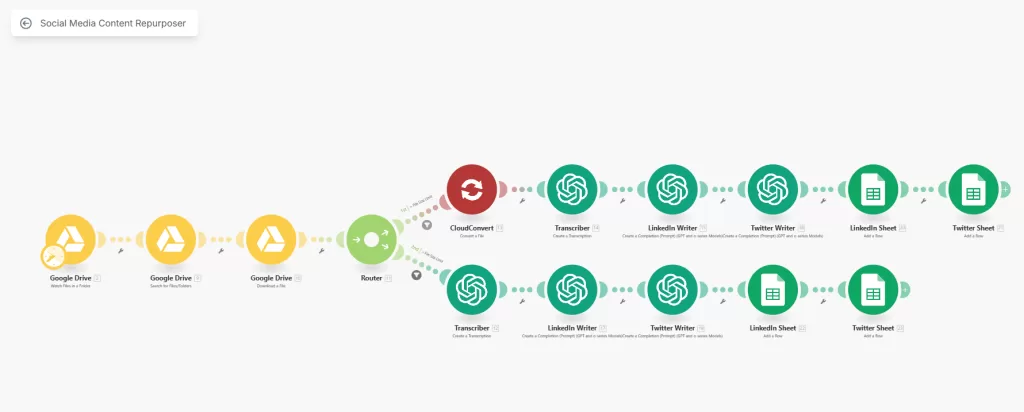
    It’s a Make.com scenario that turns one video into multiple ready-to-post social media updates. Automatically.

    No VA.

    No time wasted.

    And yes I’m giving you the exact blueprint.

    The Bottleneck No One Talks About

    Everyone says “just post more content.”

    But they don’t tell you how to make it happen without losing your mind.

    If you’re a creator, you already know.

    One video might take 30 minutes to shoot.

    But turning that into posts?

    That’s another hour gone.

    Repurposing content is where most creators drop the ball.

    That’s where consistency dies.

    That’s where attention fades.

    So I automated it.

    The Machine I Built

    Here’s what I wanted.

    Upload a video once.

    Get LinkedIn and Twitter posts back done and dusted.

    So I used Make.com.

    If you’ve never used it, it’s like LEGO for automation.

    Drag. Drop. Connect.

    Here’s what happens inside this machine:

    A video hits my Google Drive.

    Make sees it.

    It pulls the audio out.

    Feeds it to OpenAI’s Whisper to get an instant transcript.

    Then ChatGPT steps in.

    Reads the transcript.

    Writes a LinkedIn post.

    Writes a Twitter post.

    That content drops into a Google Sheet. Like magic.

    Now it’s ready to post, or to schedule.

    No thinking. No editing. No wasted time.

    How to Get It Running

    You don’t need to build this from scratch.

    I’ve done it already.

    I’m giving it to you.

    Step one: download the scenario file by clicking here.

    Step two: import it into your Make.com account.

    Step three: plug in your connections Google Drive, OpenAI, Google Sheets.

    Done. Now drop a video in your Drive folder and let it run.

    Who Should Use This

    If you make video content and don’t want to waste time repackaging it, this is for you.

    If you manage multiple social accounts and need to move faster, this is for you.

    If you’re building an audience but can’t afford a team, this is for you.

    Coaches. Consultants. Educators. Marketers.

    Even founders who post to build in public.

    You don’t need a VA for this.

    Just the scenario.

    Why This Works

    Speed wins.

    Consistency compounds.

    This gives you both.

    It saves you at least 30 minutes every time you shoot a video.

    It keeps your social feed alive even when you’re busy.

    It takes one idea and stretches it across multiple platforms.

    And it does all that with your tone, your voice, your message.


    You can spend your time manually writing posts from your videos.

    Or you can automate it and get hours back.

    This is the tool I wish I had when I started.

    Now it’s yours.

    I’ll be sharing more of these automation blueprints soon.

    If this helped, stick around.

    Because I’m just getting started.

  • This Automation Uploads Your Videos to YouTube While You Sleep

    This Automation Uploads Your Videos to YouTube While You Sleep

    You know what’s annoying?

    Manually uploading videos.

    Every. Single. Time.

    You film something. Export it. Open YouTube. Fill out the title. Set the privacy. Click upload. Wait. Repeat.

    It’s a bottleneck. And for anyone uploading regularly, it’s a real time-suck.

    So I automated it using Make.com.

    And it changed everything.

    Now, I simply drop a file into a folder on Google Drive, and it ends up on YouTube, ready to go.

    No manual steps. No extra clicks. No forgetting what got uploaded and what didn’t.

    And I’m gonna show you exactly how it works.

    Even better, I’ll give you the exact scenario blueprint I use so you can download it and set it up in your own Make.com account. 

    More on that later.

    What This Automation Does

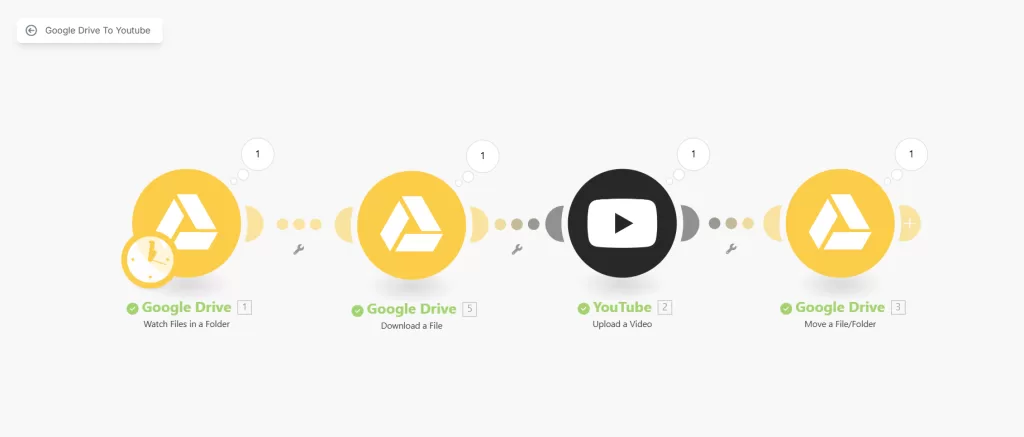
    The automation watches a specific folder in Google Drive.

    You add a video file.

    It grabs that file, uploads it straight to YouTube as an unlisted video, and then moves it to a “done” folder.

    That’s it.

    No notifications. No login. No wasted time.

    Who It’s For 

    If you’re a content creator, this is a no-brainer.

    You make the content. You drop the file. Done.

    If you’re a coach or course creator, it keeps your pipeline flowing. Record once. Drop. Repeat.

    If your editor or VA handles your uploads, this saves them (and you) time.

    You don’t need to micromanage. No need to check if it’s published.

    If you batch content ahead of time, it’s plug-and-go. 

    No stress during launch week.

    Why This Is a Game-Changer

    It saves you hours.

    You don’t have to touch YouTube every time you’ve got a video ready.

    No more late-night uploads. 

    No more “did I already post this?” moments.

    It scales with you. If you do one video a week or thirty, it doesn’t care. It just runs.

    It makes you look like a machine, consistent, efficient, on-brand.

    Customizations and Upgrades 

    This is just the base.

    You could add automatic descriptions using metadata or ai modules.

    You could pair it with another automation to send a tweet or an email when something gets published.

    The point is, it’s flexible.

    This is just one lane on a much bigger highway.

    How to Set It Up

    I’ve packaged the exact Make.com scenario I use into a downloadable blueprint.

    All you need to do is download it, import it into your Make.com account, and connect your Google Drive and YouTube accounts.

    No need to build it from scratch. It’s plug-and-play.

    And yes, the blueprint link is right here below:

    👉 Download the Scenario File

    Import it. Connect it. And you’re live.


    This setup saved me hours.

    It’s not just about saving time, though. It’s about creating smoother systems.

    Removing friction. And making content delivery automatic.

    If you upload to YouTube regularly, this is a cheat code.

    And now, you’ve got it too.

    So go ahead. Download it. Use it. Share it.